
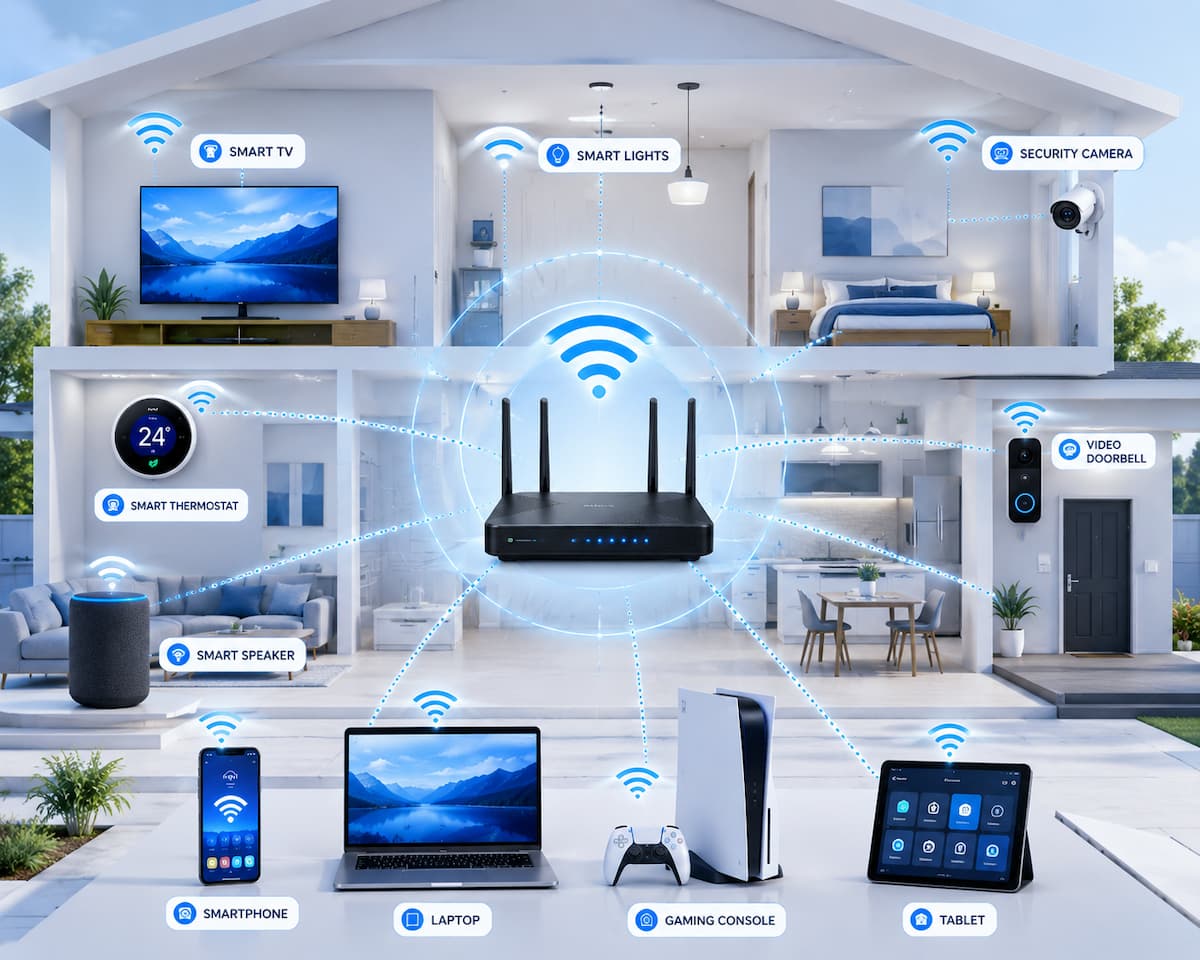
Unfortunately, many people experience slow connections, devices that randomly disconnect, buffering while streaming, or smart gadgets that stop responding. In many cases, the internet service itself is not the problem. Instead, the home network needs better planning, proper equipment, or a few simple adjustments.
The good news is that building a reliable home network does not have to be difficult or expensive. With the right setup, even beginners can create a network that supports dozens of connected devices while remaining fast, secure, and easy to manage.
In this guide, you’ll learn how to choose the right equipment, improve WiFi coverage, reduce network problems, secure your devices, and maintain a home network that performs well for years to come.
Why a Reliable Home Network Matters
Every smart device in your home communicates through your local network. If the network is slow or unstable, your devices cannot work together effectively. A reliable network keeps video calls clear, security cameras connected, streaming services running smoothly, and smart home automation working without interruption.
As more devices connect to the internet, your network has to handle additional traffic. A home with only two smartphones requires far less bandwidth than one with multiple computers, smart TVs, wireless cameras, voice assistants, and connected appliances.
Building a reliable network is not just about speed. Stability, security, coverage, and easy management are equally important. A well-designed network reduces frustration and helps every connected device perform better.
Many modern homes have more than 20 internet-connected devices. Without proper planning, even a fast internet connection can feel slow.
Benefits of a Reliable Home Network
- Better video streaming quality
- Stable online gaming
- Reliable smart home automation
- Improved video calls
- Faster file downloads
- Better network security
- Reduced connection interruptions
Plan Your Home Network Before You Start
Before buying networking equipment, take a few minutes to understand your home’s layout and internet needs. This simple planning step helps you choose equipment that fits your space instead of spending money on unnecessary upgrades.
Walk through your home and identify where you use the internet most often. Consider bedrooms, home offices, living rooms, outdoor spaces, and locations where smart devices are installed.
| Question | Why It Matters |
|---|---|
| How many devices connect daily? | Determines network capacity. |
| How large is your home? | Affects WiFi coverage requirements. |
| Do you have multiple floors? | May require additional access points. |
| Do you stream 4K videos? | Requires more bandwidth. |
| Do you work from home? | Requires stable video conferencing. |
Planning ahead makes it easier to decide whether a single router is enough or whether your home would benefit from a mesh WiFi system or additional access points.
Choose the Right Router
Your router is the centre of your home network. Every connected device communicates through it, so choosing the right model has a direct impact on performance. A router designed for modern households should support current WiFi standards, offer dual-band or tri-band connectivity, and handle multiple devices efficiently. Buying the most expensive router is not always necessary, but using outdated equipment can limit your network’s performance.
Features Worth Looking For
- Dual-band or tri-band WiFi
- Support for modern WiFi standards
- Automatic firmware updates
- Guest network support
- Quality of Service (QoS)
- Strong security features
- Easy mobile app management
| Router Feature | Benefit |
|---|---|
| Dual-Band WiFi | Balances speed and coverage. |
| Gigabit Ethernet | Fast wired connections. |
| QoS | Prioritises important traffic. |
| Guest Network | Keeps visitors separate. |
| Automatic Updates | Improves security. |
Think about future needs as well. If you plan to add more smart devices over the next few years, choosing a router with additional capacity can save money in the long run.
Place Your Router in the Best Location
Even an excellent router cannot provide strong WiFi coverage if it is placed in the wrong location. Router placement is one of the simplest improvements you can make, yet it is often overlooked. The ideal location is near the centre of your home, elevated above the floor, and away from large metal objects. This allows wireless signals to spread evenly in all directions.
Best Router Placement Tips
- Place the router near the centre of your home.
- Keep it on a shelf instead of the floor.
- Avoid placing it inside cabinets.
- Keep it away from microwaves and cordless phones.
- Leave open space around the router.
- Avoid placing it behind televisions.
If your home has two floors, placing the router on the upper level near the centre of the house often provides better overall coverage than placing it in a corner on the ground floor.
Configure Your WiFi Network Properly
After choosing a good router and placing it in the right location, the next step is configuring your wireless network correctly. Many routers work reasonably well with their default settings, but spending a few minutes adjusting them can improve both performance and security.
Start by giving your WiFi network a clear and recognisable name (SSID). Avoid using personal information such as your address or family name. If your router supports both 2.4 GHz and 5 GHz bands, you can either use separate network names or enable Smart Connect if available. Smart Connect automatically places devices on the most suitable frequency.
Choose the Right Frequency Band
Both wireless bands have their strengths. Understanding when to use each one helps your devices perform better.
| Feature | 2.4 GHz | 5 GHz |
|---|---|---|
| Coverage | Longer range | Shorter range |
| Speed | Moderate | Faster |
| Wall Penetration | Better | Less effective |
| Interference | Higher | Lower |
| Best Use | Smart devices farther away | Streaming, gaming, video calls |
If your smart camera is located outside your home, the 2.4 GHz network may provide a stronger signal. Devices located close to the router, such as laptops or smart TVs, usually benefit from the higher speeds available on the 5 GHz band.
Secure Your Home Network
A reliable home network is also a secure one. If unauthorised users gain access to your WiFi, they can consume bandwidth, slow your connection, or even attempt to access shared devices. Fortunately, improving security does not require advanced technical knowledge. A few simple precautions can significantly reduce risks while keeping your smart home running smoothly.
Essential Security Steps
- Create a strong WiFi password.
- Change the default administrator password.
- Enable WPA3 security if available.
- Use WPA2 if WPA3 is unsupported.
- Disable remote management unless needed.
- Create a separate guest network for visitors.
- Review connected devices regularly.
Many modern routers include smartphone apps that make it easy to see every connected device. If you notice an unfamiliar device, change your WiFi password immediately and reconnect only trusted devices.
Why Guest Networks Are Helpful
A guest network allows visitors to use your internet connection without accessing your computers, smart storage devices, or other connected equipment. It also helps protect your personal devices if a visitor’s phone or laptop becomes infected with malware.
Improve WiFi Coverage Throughout Your Home
Even with a quality router, larger homes may still have areas where the WiFi signal becomes weak. Thick walls, multiple floors, and long distances can all reduce wireless performance.
Instead of simply purchasing a more expensive router, consider solutions designed to extend coverage more effectively.
| Solution | Best For | Main Advantage |
|---|---|---|
| WiFi Extender | Small dead zones | Affordable and simple |
| Mesh WiFi System | Large homes | Seamless whole-home coverage |
| Access Point | Ethernet-connected rooms | Excellent performance |
| Powerline Adapter | Homes with thick walls | Uses electrical wiring |
Mesh WiFi Systems
Mesh systems consist of multiple units placed throughout your home. They work together as a single network, allowing phones and other devices to switch automatically to the strongest signal as you move from room to room.
WiFi Extenders
WiFi extenders are useful when only one or two rooms experience weak coverage. They are generally less expensive than mesh systems but may reduce overall wireless speed because they repeat the existing signal.
Manage Connected Smart Devices Efficiently
The average smart home contains far more connected devices than many people realise. Phones, tablets, laptops, streaming boxes, security cameras, smart speakers, doorbells, televisions, printers, thermostats, and lighting systems all compete for network resources.
Managing these devices properly helps maintain stable performance without overwhelming your router.
Organize Your Devices
- Disconnect devices you no longer use.
- Keep frequently used devices updated.
- Rename smart devices for easier management.
- Connect stationary devices with Ethernet whenever possible.
- Restart devices that frequently lose connection.
Prioritize Important Traffic
If your router supports Quality of Service (QoS), enable it to prioritise activities such as video calls, online learning, or gaming. This prevents large downloads or cloud backups from slowing more important tasks.
| Device Type | Recommended Connection |
|---|---|
| Desktop Computer | Ethernet |
| Gaming Console | Ethernet if available |
| Smart TV | Ethernet or 5 GHz WiFi |
| Smart Camera | Stable WiFi |
| Smart Speaker | 2.4 GHz or 5 GHz |
| Smart Bulbs | 2.4 GHz |
Common Mistakes to Avoid
Many network problems result from simple mistakes rather than faulty hardware. Avoiding these issues can save time, money, and frustration.
- Placing the router inside a cabinet.
- Ignoring firmware updates.
- Using weak passwords.
- Connecting too many unnecessary devices.
- Buying expensive equipment before troubleshooting.
- Leaving default router settings unchanged.
- Assuming internet speed is always the problem.
Maintain Your Home Network
A reliable home network is not something you set up once and forget. Like any technology, routers and connected devices benefit from regular maintenance. Spending just a few minutes each month can prevent many common networking problems before they become frustrating.
Routine maintenance improves performance, strengthens security, and helps your smart devices communicate more efficiently. It also gives you the opportunity to identify devices that may no longer be needed or software that requires updating.
Monthly Network Maintenance Checklist
- Restart your modem and router.
- Check for router firmware updates.
- Update smart home devices when new software is available.
- Review the list of connected devices.
- Remove devices you no longer use.
- Inspect Ethernet cables for damage.
- Verify that backup internet settings are working if available.
- Clean dust from the router’s ventilation openings.
Keep Device Software Updated
Many smart devices receive firmware updates that improve reliability, security, and compatibility with your network. Enable automatic updates whenever possible, especially for security cameras, smart locks, and networking equipment.
Troubleshoot Common Home Network Problems
Even a well-designed network may occasionally experience problems. The good news is that many issues have simple solutions. Working through a basic troubleshooting checklist often saves time and prevents unnecessary equipment replacements.
| Problem | Possible Cause | Suggested Solution |
|---|---|---|
| Slow WiFi | Network congestion | Restart the router and reduce connected devices. |
| Weak signal in one room | Poor coverage | Move the router or install a mesh node. |
| Devices disconnect randomly | Interference or outdated firmware | Update firmware and reduce interference. |
| Streaming buffers frequently | Limited bandwidth | Use the 5 GHz band or Ethernet. |
| Smart devices become unavailable | Router restarted or IP conflict | Reconnect the device and check router settings. |
| Internet unavailable | ISP outage or modem issue | Restart the modem and contact your provider if needed. |
Simple Troubleshooting Steps
- Restart the modem and router.
- Check whether only one device has the problem.
- Run an internet speed test.
- Move closer to the router.
- Update router firmware.
- Check for service outages.
- Reconnect devices if necessary.
Prepare Your Network for Future Smart Devices
The number of smart devices in homes continues to grow every year. A network that works well today may need to support twice as many devices in the future. Planning ahead helps avoid unnecessary upgrades later.
When choosing networking equipment, consider not only your current needs but also how your household may change over the next few years. Additional smart lights, cameras, appliances, and entertainment devices can all increase network demand.
Ways to Future-Proof Your Home Network
- Choose a router that supports current WiFi standards.
- Leave room for additional connected devices.
- Use Ethernet for stationary equipment whenever possible.
- Select networking equipment that receives regular firmware updates.
- Consider a mesh WiFi system for larger homes.
- Review your internet plan if your household grows.
FAQs
1. How many smart devices can a home router support?
The exact number depends on the router model and the type of devices connected. Modern routers can often handle dozens of devices, but heavy activities such as 4K streaming and online gaming require more resources than smart bulbs or sensors. Choosing a router designed for multiple devices helps maintain stable performance.
2. Should smart home devices use 2.4 GHz or 5 GHz WiFi?
Many smart home products are designed for the 2.4 GHz band because it provides longer range and better wall penetration. Devices that need higher speeds, such as smart TVs or laptops, often perform better on the 5 GHz band when located close to the router.
3. Is a mesh WiFi system better than a traditional router?
For small homes, a single quality router is often enough. Larger homes with multiple floors or thick walls usually benefit from a mesh WiFi system because it provides consistent coverage across the entire property without requiring users to switch between different networks.
4. How often should I update my router?
Check for firmware updates every few months unless your router updates automatically. Firmware updates improve security, fix software bugs, and sometimes enhance wireless performance and compatibility with newer devices.
5. Why do my smart devices randomly disconnect?
Random disconnections may result from weak WiFi coverage, signal interference, outdated firmware, overloaded routers, or temporary software issues. Checking signal strength, updating firmware, and restarting the router often solve the problem.
Conclusion
A reliable home network is the foundation of every successful smart home. Whether you use only a few connected devices or dozens of them, careful planning, proper router placement, secure settings, and regular maintenance all contribute to a faster and more dependable experience.
Remember that network performance is influenced by several factors working together. Choosing suitable equipment, reducing interference, managing connected devices, and keeping software updated can solve many common problems without requiring expensive upgrades. By following the practical advice in this guide, you can create a home network that supports today’s smart devices while remaining ready for future technology. Small improvements made today can provide better reliability, stronger security, and smoother performance for years to come.
References
- Wi-Fi Alliance — https://www.wi-fi.org/
- Federal Communications Commission (FCC) — https://www.fcc.gov/
- National Institute of Standards and Technology (NIST) — https://www.nist.gov/
- Cybersecurity and Infrastructure Security Agency (CISA) — https://www.cisa.gov/
- Internet Society — https://www.internetsociety.org/
- IEEE Standards Association — https://standards.ieee.org/
